
Bottleneck Calculator | Test CPU, GPU Performance
Analyze CPU, GPU, resolution, RAM, and workload to reveal bottlenecks and upgrade paths.
Beyond the bottleneck check above, we also have dedicated tools for related questions: an FPS Calculator to estimate frame rates, a PSU Calculator to size your power supply, a tool to Compare CPUs and GPUs side by side, and a VRAM Calculator for gaming and local AI models.
Stuttering frames, a graphics card that never seems to work as hard as it should, or a processor pegged at 100% while your FPS stays flat — these are the moments that send people looking for a clear answer instead of guessing at an upgrade. Our tool checks your CPU, GPU, RAM, storage, resolution, and workload together and tells you exactly which part is holding the rest back, so you spend money on the upgrade that actually changes something.
A bottleneck happens when one component in your system — usually the CPU or GPU — can’t keep pace with the rest, so the faster parts sit underused while overall performance stalls. It shows up as lower frame rates, stutter during demanding scenes, or a graphics card that never reaches full load no matter how the game is set.
Run your current setup through the calculator above before spending on either part — it removes the guesswork from this exact decision, and it’s free with no signup required.
How to Use Our Bottleneck Calculator?
Follow the three steps below to get a clear read on your system in under a minute.
Step 1:
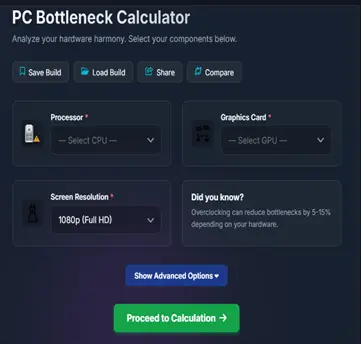
Select CPU & GPU
Select processor model from the list, such as Intel Core i9-14900KS or AMD Ryzen 9 7900X3D. Then choose a compatible graphics card from the dropdown, for example NVIDIA GeForce RTX 5080, to proceed with accurate system evaluation.
Step 2:
Pick Resolution
Choose your screen resolution For the most accurate results, always select the resolution you actually use for gaming, as lower settings like 1080p may not properly reflect performance at higher resolutions like 1440p, 5K or 8K.
Step 3:
Result Analysis
Click the Proceed to Calculation Analyze button The system evaluates hardware compatibility using advanced algorithms and then displays detailed results, including performance scores and bottleneck percentages for your components.
How Should You Interpret Your Bottleneck Results?
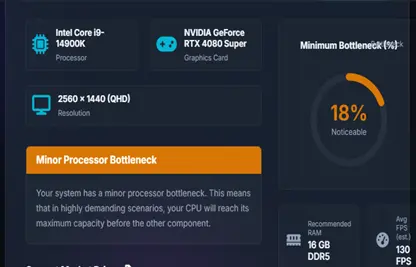
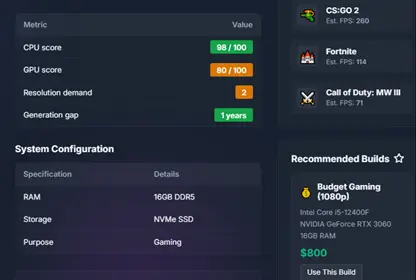
A comprehensive system performance report is displayed instantly. The result comprises hardware configuration, a bottleneck graph with percentages, components’ performance scores, an overall summary, and future upgrade recommendations.
Up to a 10% score shows the system is well balanced, and if the bottleneck score is less than 20%, it is a little bit alarming but has less significance. A more than 30% CPU or GPU score overall indicates a strong bottleneck in your system and that an upgrade is needed. The following table helps you understand the results in a better way and take a better future PC upgrade plan.
What is a Bottleneck Calculator?
A computer system with high-end components may not deliver smooth performance, even though you might have tried upgrades but are still facing the quality issues. Here you need a smart calculator that analyzes component pairing configurations and finds the restricting component that creates the PC bottlenecks.
A bottleneck calculator is a software tool developed to evaluate and identify the imbalance between system hardware like processors, graphics cards, or insufficient memory. It generates results in percentages that help you identify potential bottlenecks in your PC and build accordingly. It also recommends the future upgrades that ensure your computer runs fast, smooth, and efficiently.
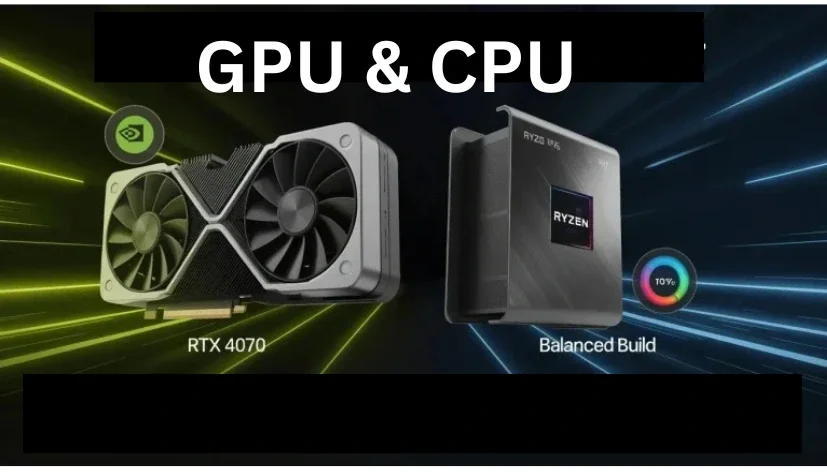
How does a Bottleneck Calculator work?
Our tool compares your selected CPU and GPU against a benchmark dataset covering gaming, rendering, and general workloads, then adjusts the result for your chosen resolution and use case.
What Features Does Our Bottleneck Calculator Offer?
Every result includes a bottleneck percentage, a breakdown by component, and a plain-language recommendation — including when the honest answer is that nothing needs upgrading. Here’s what that looks like in practice:
Why Is Our Calculator Easy to Use & Accurate?
Select your exact components rather than a close match, since even one generation of difference changes the outcome. The more precise your inputs, the more accurate your score — and you can export a PDF report or compare two builds side by side.
How Are Bottleneck Scores Calculated?
For the full breakdown of how those scores get calculated — including where the estimate’s limits are — see our Methodology page.
How Can a Bottleneck Calculator Help You Save Money?
Knowing which single component is actually limiting you means you upgrade once, not twice — instead of guessing and discovering afterward that the new part wasn’t the real bottleneck.
How Does Our Calculator Analyze PC Performance?
The breakdown shows exactly how much headroom each component has left, so you can see whether a small bottleneck is worth fixing or safe to ignore.
How Can Our Calculator Recommend Future PC Upgrades?
Beyond the score, you get a specific recommendation: which component to upgrade, or confirmation that your system is already balanced and further spending wouldn’t help.
What Are the Different Types of PC Bottlenecks?
A bottleneck happens when one component holds back the rest of your system, even if every other part is working fine. Knowing which type you’re dealing with points you toward the right fix instead of a guess.
What Is a CPU Bottleneck?
A CPU bottleneck happens when your processor can’t prepare frames fast enough to keep your graphics card fed, so the GPU sits underused while the CPU works flat out. It shows up as stutter or uneven frame pacing rather than a flat low FPS. Closing background apps, adjusting CPU-heavy settings, or upgrading the processor are the fixes, roughly in that order.
What Is a GPU Bottleneck?
A GPU bottleneck happens when your graphics card is working at full capacity while the CPU has room to spare. This is the more common pairing in gaming, especially at higher resolutions, and usually just reflects your settings being appropriately demanding. Lowering resolution, adjusting graphics settings, or a GPU upgrade are the fixes.
What Is a RAM Bottleneck?
A RAM bottleneck happens when your system doesn’t have enough memory, or fast enough memory, to keep up with what your CPU and GPU need. It shows up as stutter and longer load times, even with a strong CPU and GPU. Closing background programs helps in the short term; adding more RAM is the real fix if you’re consistently near your limit.
What Is a Storage Bottleneck
A storage bottleneck happens when your drive can’t move data as fast as your CPU and RAM expect, which shows up as long load times and occasional texture pop-in rather than lower FPS. Moving to an SSD or NVMe drive is the most effective fix.
What Is a Thermal Bottleneck?
A thermal bottleneck isn’t a hardware mismatch at all — it’s a component throttling itself to avoid overheating, which can look identical to a CPU or GPU bottleneck in a benchmark. Loud fans, sudden shutdowns, and inconsistent performance under load are the signs. Cleaning dust, improving airflow, or replacing a weak cooler fixes it, not a new CPU or GPU.
What Do Different CPU and GPU Usage Scenarios Mean?
Checking your CPU and GPU usage while gaming tells you a lot before you even run the calculator. Here’s what each combination typically means.
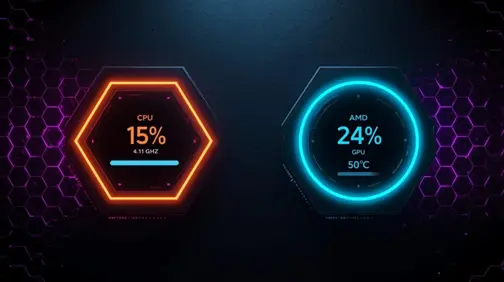
What Does Low CPU Usage and Low GPU Usage Mean?
Both components have room to spare. This is normal for lighter games or older titles, and isn’t something to fix — your hardware simply isn’t being pushed.
What Does Low CPU Usage and High GPU Usage Mean?
The graphics card is doing all the work while the CPU waits. This is a GPU bottleneck: expect lower frame rates at demanding settings, with a resolution drop or GPU upgrade as the fix.
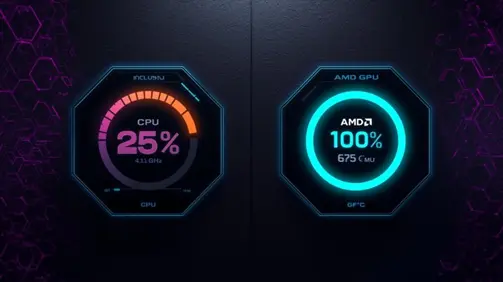
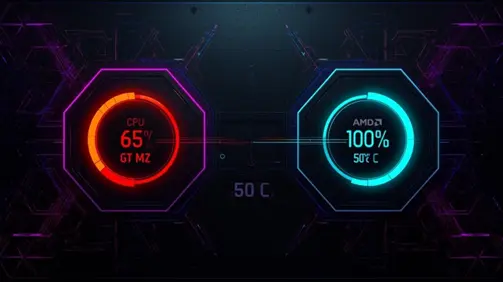
What Does High CPU Usage and High GPU Usage Mean?
Both components are working near their limit — the sign of a well-matched system under a genuinely demanding load, not a problem. Keep an eye on temperatures, since this is when cooling matters most.
What Does High CPU Usage and Low GPU Usage Mean?
The processor is maxed out while the graphics card has headroom — a CPU bottleneck. Frame rate won’t improve much from lowering graphics settings; a processor upgrade is the real fix.
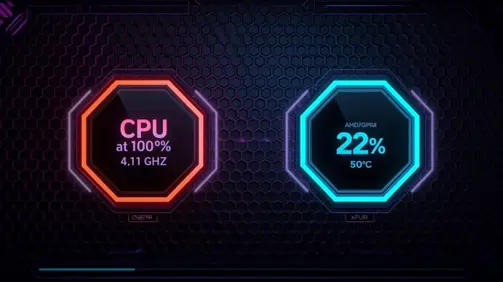
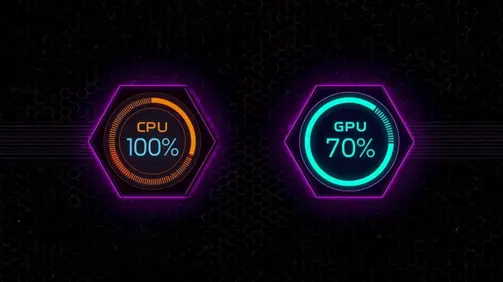
What Does High CPU Usage and High GPU Usage Indicate?
If both stay high across a range of games rather than just one demanding title, your build is generally well balanced for its price point, with little to gain from upgrading either part in isolation.
What Does 100% CPU Usage and 100% GPU Usage Mean?
Smooth performance in demanding games and applications, with both components working hard but not throttling, is exactly what a properly matched system looks like.
How Can You Reduce a PC Bottleneck?
Users often seek guidelines to maximize system performance and avoid potential issues. These tips help you to ensure your PC runs smoothly and efficiently
Why Should Gamers, Streamers, and Creators Use a Bottleneck Calculator?
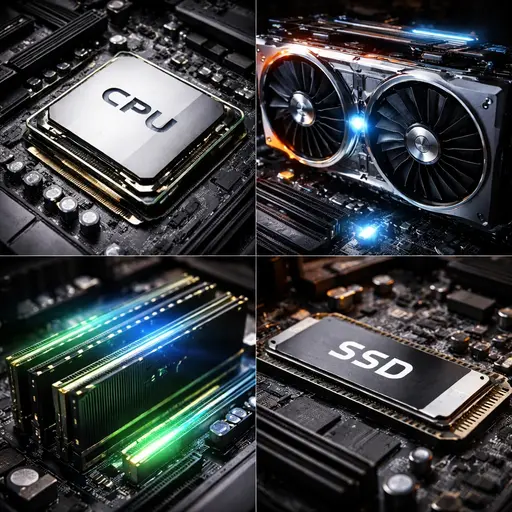
Being a gamer, video editor, or live streaming user, you must face performance issues like frame drops, slow speed, system hangs, or poor graphics quality. It is essential to build a balanced system that runs games and apps smoothly to avoid bottlenecks. Our calculator helps PC builders find the perfect match between the CPU and GPU.
How Can a Bottleneck Calculator Help You Plan Future PC Upgrades?
You feel insecure about future PC building decisions due to a lack of relevant information about balanced systems with matching CPUs, GPUs, and other components. The bottleneck calculator gives the best pairing suggestions to make a perfect computer system for gaming and modern apps. It saves your time, money, and efforts to build an efficient system
Why Does PC Performance Affect the Gaming Experience?
You are excited and feel relaxed while using a well-balanced PC that handles all tasks smoothly, but you become upset sometimes or dissatisfied while facing sudden speed reduction, lag, or taking longer loading times. It distracts your focus on working flow. This bottleneck calculator identifies the actual problems and leads to an optimal setup by eliminating PC bottlenecks.
Frequently Asked Questions
Conclusion
Hidden bottlenecks restrict the performance of system hardware, and regular analysis guides you to make timely decisions. A balance among CPU, GPU, RAM, storage type, and screen resolution plays a vital role in whether your system is running at full capacity. A bottleneck calculator figures out the limiting factor of your PC bottleneck and suggests the best possible solution for future upgrades. Regular use of our tool ensures that your PC delivers the best possible performance for gaming, streaming, or professional work.
Ready to optimize your build?
Run a quick check and get upgrade guidance in seconds.
